
10 Useful Gmail Tips and Tricks You Should Know (2026)
In 2008 a guest author shared five little-known Gmail tips: sending from another address, placing your signature above replies, using dots to track spam sources, the forgotten-attachment reminder and signing out other sessions. Most still work, and Gmail has added plenty more. Here are the Gmail tips worth knowing in 2026.
Quick answer: The most useful Gmail tips are: add another address under Settings > Accounts to send mail as it; use plus aliases (you+shop@gmail.com) to filter and track who shares your email; schedule emails with the arrow next to Send; turn on Undo Send for up to 30 seconds; use search operators like has:attachment larger:10M; and check Google Account > Security > Your devices to sign out sessions you don’t recognise.
Table of Contents
10 Gmail tips and tricks
1. Send mail as another address
Settings > See all settings > Accounts and Import > Send mail as > Add another email address. Verify it, then choose the From address when writing.
2. Dot and plus aliases
Gmail ignores dots (r.o.w@gmail.com reaches row@gmail.com) and anything after a plus (row+news@gmail.com). Plus aliases are clearer for filters and for spotting who sold your address.
3. Signature above replies
Settings > General > Signature: tick the option to insert your signature before quoted text. See how to add a Gmail signature with images and links.
4. Attachment reminders
Gmail now warns you automatically if you mention an attachment but forget to add it, no Labs needed.
5. Undo Send
Set a 30-second cancellation period; here’s how Gmail Undo Send works.
6. Schedule send
Click the arrow next to Send and pick a time.
7. Search operators
Try from:boss@example.com, has:attachment, larger:10M, older_than:1y or label:unread to find anything fast.
8. Inbox tabs and filters
Use Gmail tabs and filters to sort newsletters and notifications automatically.
9. Keyboard shortcuts
Turn them on in Settings, then press ? to see them; e to archive and r to reply save lots of time.
10. Secure your account
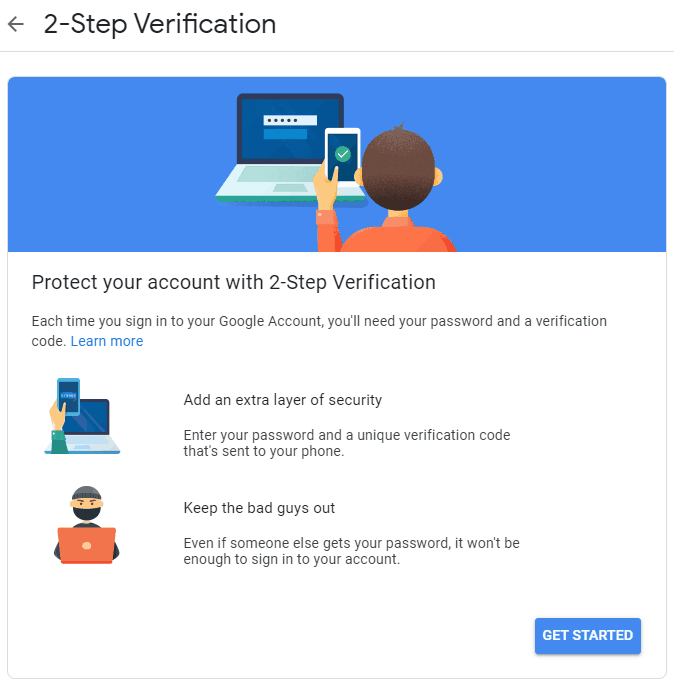
Review signed-in devices in your Google Account security page, and turn on 2-Step Verification or passkeys.
Originally written by the guest author of ReviewOfWeb.com. Updated for 2026 by QuickOnlineTips.
FAQ
Do Gmail dot addresses really reach the same inbox?
Yes, for @gmail.com addresses, dots are ignored.
Can I sign out of Gmail on another computer remotely?
Yes, from Google Account > Security > Your devices.
Where did Gmail Labs go?
Most Labs features became regular settings or were retired.
Stuck on a gift? Try our free Gift Idea GeneratorIdeas for anyone by age, job, interests and budget, with Amazon.com and Amazon.in linksFind gifts →Get our free weekly email: new tech guides and tools, no spam.
New and updated tech guides, a free tool worth bookmarking and one useful pick, once a week. No spam, unsubscribe anytime.
One email a week. Unsubscribe anytime. See our privacy policy.

True, verh helpful post. I have tried it and it’s working like magic.Please keep your good ideas coming.
Having a separate email account for spam is important counter-intelligence to anyone trying to fill your mailbox with junk mail.
@Martha: I think there are some Firefox addons that can help you with this but I would prefer a simple way.
If you want to work on three different Google accounts at the same time, use three different browsers. Probably FF, IE, chrome?
I have three email accounts and often go from one to the other. I sign out of one so that I can sign into the other. An annoying thing happens. When I sign out of account A, to go to B, I find that once I am in B and typing a message, a pop up says, You have been signed out of this account.
THen gmail closes up account B and I have to sign in all over again. It’s very annoying. Do you have a tip?
I use one email for signing up for stuff and another for talking with fiends and family. That is the best way to do it for me.
Dont forget, the space more larger everydays… lols! :))
Good Tips!
But I think Gmail has another good tip with classified method when you arrange to classify your mails.
You can always depend on your mind to increase the classified items, in the Gmail this function is called Labels (select “More Actions” down-pull -> New label…), it will be worked in your mind.
These are awesome tips. I’ve had a bit of a hard time switching to Gmail but as I get more and more used to, I’m finding out that it’s a lot better than – well – any of the others ;)
Thanks!
Nice tips. The feature that reminds of the attachments is a very good one indeed. Could you write some tips for users of Google reader and chrome as well?
Destination Infinity
Do you know how to transit the mails from Yahoo account to Gmail?
Haha yes, I agree. Especially for ‘attachment’ tip. :P
I dont use gmail, but thats some darn awesome tips for those who do